StoryLite



StoryLite is a lightweight, Vite-powered alternative to Storybook for building and showcasing component stories in HTML, React, Preact, Svelte, Vue, and Solid. It gives projects a focused story workflow with a managed app shell, isolated preview iframe, story controls, static output, and optional framework renderer adapters.
Use it when you want story-driven component previews without the full Storybook addon platform or configuration surface. Start with HTML or web components, then add framework adapters only where your project needs them.
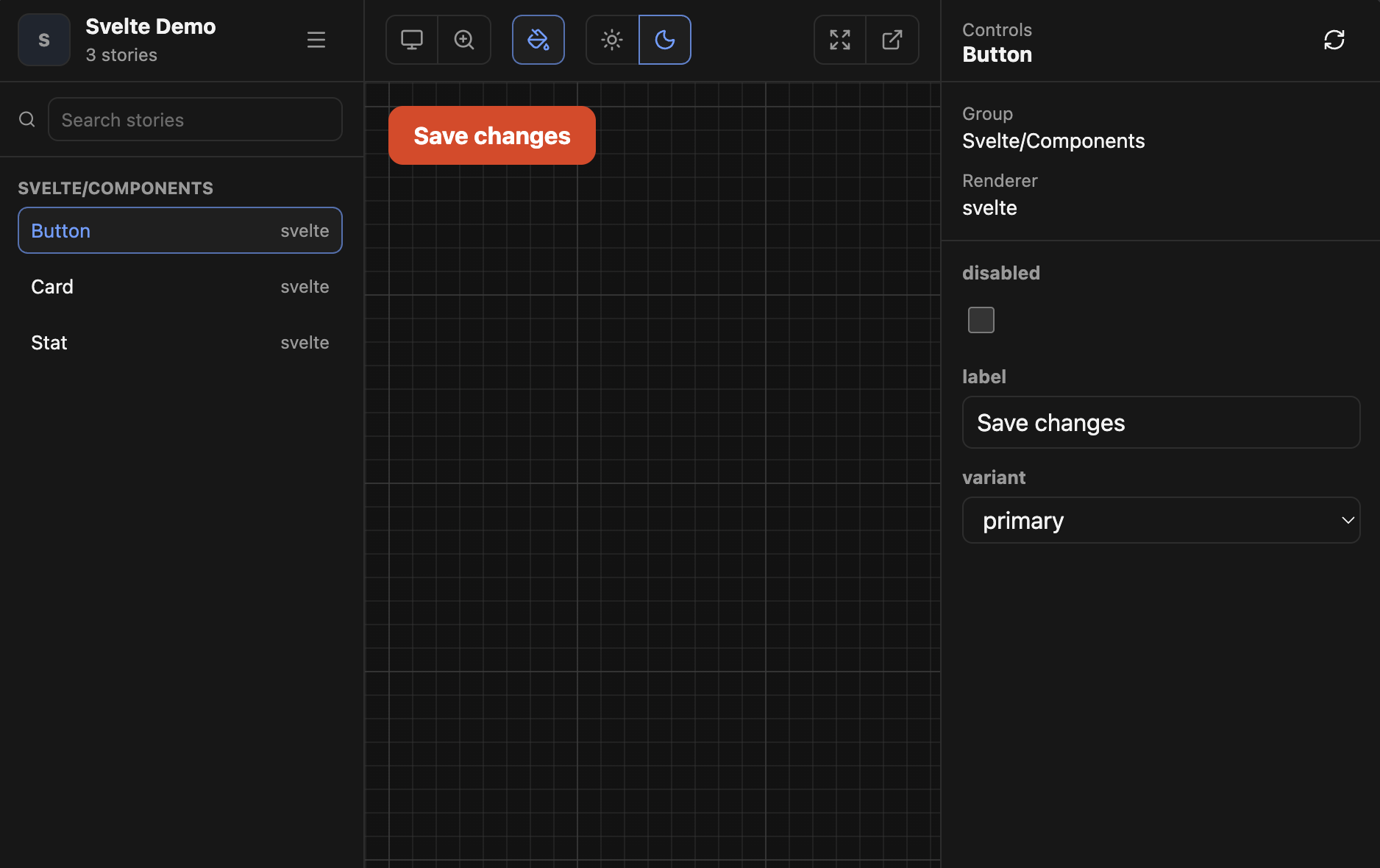
Highlights
- Managed CLI app: run
storylite dev,storylite build, andstorylite preview. - Portable previews: configured project CSS is injected into the isolated preview iframe and static story pages.
- Built-in renderers for
htmlandweb-components. - Optional adapters for React, Preact, Svelte, Vue, and Solid.
- CSF-like story files with
args,argTypes, controls, and per-story parameters. - Static build with a prerendered manager shell and one static page per story.
- Project customization for branding, backgrounds, viewports, toolbar tools, menu links, HTML hooks, home content, and Vite plugins.
Install
Install StoryLite in the package that owns your stories:
pnpm add -D @storylite/storylite
Add a framework adapter only when you need one:
pnpm add -D @storylite/renderer-react
pnpm add -D @storylite/renderer-preact
pnpm add -D @storylite/renderer-svelte
pnpm add -D @storylite/renderer-vue
pnpm add -D @storylite/renderer-solid
Renderer adapters keep framework-specific tooling out of @storylite/storylite. Install the
framework peers only for adapters you configure; for example React projects install react and
react-dom, Svelte projects install svelte, and Vue/Solid projects install their renderer package
plus the Vite plugin peer listed by that package.
Add scripts:
{
  "scripts": {
    "storylite": "storylite dev",
    "storylite:build": "storylite build",
    "storylite:preview": "storylite preview"
  }
}
CLI
StoryLite exposes three commands:
storylite
storylite dev
storylite build
storylite preview
Running storylite without a command prints help. --help and -h are supported globally and
after each command.
| Option | Description |
|---|---|
-h, --help |
Print CLI usage help. |
storylite dev
Starts the managed Vite development server.
storylite dev --port 4103 --host 127.0.0.1
| Option | Description |
|---|---|
--port <port> |
Dev server port. Defaults to 3993, or PORT when it is set. |
--host [host] |
Host to listen on. Pass without a value to expose on all hosts. |
EXPOSE_HOST=1 and EXPOSE_HOST=true also expose the dev server on all hosts.
storylite build
Builds the static StoryLite output into dist-storylite.
storylite build --base /docs/
| Option | Description |
|---|---|
--base <path> |
Public base path for generated asset and story URLs. Defaults to ./. |
STORYLITE_BASE can also set the build base path.
storylite preview
Serves dist-storylite with Vite preview.
storylite preview --port 4103 --host 127.0.0.1 --base /docs/
| Option | Description |
|---|---|
--port <port> |
Preview server port. Defaults to 3993, or PORT when it is set. |
--host [host] |
Host to listen on. Defaults to exposing on all hosts for preview. |
--base <path> |
Public base path used while serving the built output. Defaults to ./. |
Quick Start
Create .storylite/config.ts:
import { defineConfig } from '@storylite/storylite'

export default defineConfig({
  stories: ['./src/**/*.stories.ts'],
  css: ['./src/styles.css'],
})
Create a story:
import type { StoryLiteMeta, StoryLiteStoryDefinition } from '@storylite/storylite'
import buttonHtml from './button.html?raw'

export default {
  title: 'Components/Button',
} satisfies StoryLiteMeta

export const Default = {
  args: {
    label: 'Save changes',
  },
  argTypes: {
    label: { control: 'text' },
  },
  render: (args) => buttonHtml.replace('{{ label }}', String(args.label)),
} satisfies StoryLiteStoryDefinition<{ label: string }>
Run StoryLite:
pnpm storylite
Build static output:
pnpm storylite:build
storylite build writes dist-storylite/index.html plus one default-args static page per story at
dist-storylite/stories/<story-id>/index.html. Static asset URLs are relative by default so the
output can be hosted from a subpath.
Configuration
StoryLite reads .storylite/config.ts first, then .storylite/config.js. Export with
defineConfig for typed authoring:
import { defineConfig } from '@storylite/storylite'

export default defineConfig({
  stories: ['./src/**/*.stories.{ts,tsx}'],
  css: ['./src/styles.css'],
  home: '# Component Library',
  setup: './.storylite/setup.ts',
  renderers: [],
  vitePlugins: [],
  storyId: (_path, suggestedId) => suggestedId,
})
Core Options
| Option | Description |
|---|---|
stories |
Glob patterns for story modules. Required. |
css |
Shared CSS files injected into the preview iframe and static story pages. |
home |
Inline Markdown source for the home page. Overrides .storylite/home.md when set. |
publicDir |
Static asset directory served at / in dev and copied into dist-storylite. Defaults to public. Set false to disable. |
setup |
Optional module exporting setupPreview(window) for preview setup. |
renderers |
Optional renderer adapters, such as react(), preact(), svelte(), vue(), or solid(). |
vitePlugins |
StoryLite-specific Vite plugins. Use this for Tailwind, aliases, and other project transforms. |
storyId(path, suggestedId) |
Optional story ID rewrite hook. |
storySort |
Custom sidebar ordering. { order: [...] } lists titles to pin to the top; see Story Sorting. |
Story IDs strip the leading src/ segment by default. For example,
src/components/button.stories.ts becomes components-button--primary. Duplicate IDs are shown in
the dev UI and fail storylite build.
Story Sorting
By default the sidebar follows discovery order (story files sorted by path, then export order within
each file). Use storySort to pin specific entries to the top. It supports a subset of Storybook's
storySort option: the order array.
import { defineConfig } from '@storylite/storylite'

export default defineConfig({
  stories: ['./src/**/*.stories.ts'],
  storySort: {
    order: [
      'Introduction',
      'Foundations',
      ['Colors', 'Typography', 'Spacing'],
      'Components',
      ['Button', 'Input', 'Select', 'Dialog', 'Popover'],
      'Patterns',
      'Pages',
    ],
  },
})
How order is matched against the sidebar tree:
- Each string targets an entry at the current level by its title segment — a top-level group, a root-level component, or (when nested) a component within a group.
- An array immediately after a string orders that entry's children. After a group it orders the group's components; after a component it orders that component's stories. Nesting can go deeper to reach stories inside grouped components.
- Entries not listed in
orderkeep their discovery order and appear after the listed ones. Add'*'to mark where unlisted entries should go instead.
For example, order: ['Pages', '*', 'WIP'] shows Pages first, then everything not named in the
list, then WIP last. Only order is supported; the method, includeNames, and locales
options are not.
Public Assets
Put static files that need stable names in public/. StoryLite serves them from / during
storylite dev and copies them to the root of dist-storylite during storylite build:
public/favicon.ico
public/robots.txt
Reference those files with root-relative URLs such as /favicon.ico. StoryLite keeps those URLs
base-safe in built output. For example, storylite build --base /docs/ rewrites matching public
asset URLs in generated pages to /docs/..., while relative builds rewrite nested static story
pages to paths such as ../../favicon.ico.
To use a different directory or disable public assets:
export default defineConfig({
  publicDir: './.storylite/public',
  // publicDir: false,
})
Project CSS
Configured css files are processed by Vite as ?inline, so Vite plugin transforms run before the
CSS string is injected into previews:
export default defineConfig({
  css: ['./src/styles.css'],
})
Story-specific CSS can also be supplied through parameters.css:
export const Primary = {
  parameters: {
    css: '.button { border-radius: 8px; }',
  },
}
If story-specific CSS needs Vite transforms, import it as ?inline instead of ?raw:
import css from './button.css?inline'

export const Primary = {
  parameters: { css },
}
Vite Plugins
StoryLite runs an isolated Vite config for its managed app instead of merging the consuming
project's full vite.config.ts. Add StoryLite-specific Vite plugins with vitePlugins:
import { defineConfig } from '@storylite/storylite'
import tailwindcss from '@tailwindcss/vite'

export default defineConfig({
  stories: ['./src/**/*.stories.tsx'],
  css: ['./src/styles.css'],
  vitePlugins: [tailwindcss()],
})
vitePlugins can also be a callback:
vitePlugins: ({ target, command, projectRoot }) => {
  if (target === 'static') return []
  return [tailwindcss()]
}
The callback receives:
| Field | Values |
|---|---|
target |
'manager', 'prerender', or 'static' |
command |
'serve' or 'build' |
projectRoot |
Absolute path to the consuming project |
Tailwind CSS 4
Install Tailwind:
pnpm add -D tailwindcss @tailwindcss/vite
Configure StoryLite:
import { defineConfig } from '@storylite/storylite'
import tailwindcss from '@tailwindcss/vite'

export default defineConfig({
  stories: ['./src/**/*.stories.tsx'],
  css: ['./src/styles.css'],
  vitePlugins: [tailwindcss()],
})
Add Tailwind to the configured stylesheet. When your utility classes live in story/component files,
explicitly register those files with @source:
@import 'tailwindcss';
@source './components';
Framework Adapters
StoryLite ships built-in support for html and web-components. Framework support is added with
renderer adapters so each project only installs the runtimes it uses.
React
import { defineConfig } from '@storylite/storylite'
import react from '@storylite/renderer-react'

export default defineConfig({
  stories: ['./src/**/*.stories.tsx'],
  css: ['./src/styles.css'],
  renderers: [react()],
})
Preact, Svelte, Vue, And Solid
import preact from '@storylite/renderer-preact'
import svelte from '@storylite/renderer-svelte'
import vue from '@storylite/renderer-vue'
import solid from '@storylite/renderer-solid'

export default defineConfig({
  renderers: [preact(), svelte(), vue(), solid()],
})
You can register multiple adapters in one project; each story selects one renderer with
parameters.renderer, while html and web-components remain available by default.
Each adapter owns its client renderer, optional static renderer, and adapter-specific Vite plugins.
Changing renderer adapters in .storylite/config.ts requires restarting storylite dev.
Story Format
StoryLite supports a focused CSF-like subset:
import type { StoryLiteMeta, StoryLiteStoryDefinition } from '@storylite/storylite'

type ButtonArgs = {
  label: string
  variant: 'primary' | 'secondary'
  disabled: boolean
}

export default {
  title: 'Components/Button',
  args: {
    variant: 'primary',
    disabled: false,
  },
  argTypes: {
    label: { control: 'text' },
    variant: { control: 'select', options: ['primary', 'secondary'] },
    disabled: { control: 'boolean' },
  },
  parameters: {
    renderer: 'html',
  },
} satisfies StoryLiteMeta<ButtonArgs>

export const Primary = {
  name: 'Primary',
  args: {
    label: 'Save changes',
  },
  render: (args) => `<button data-variant="${args.variant}">${args.label}</button>`,
} satisfies StoryLiteStoryDefinition<ButtonArgs>
Single Story Files
For a file with one primary story, keep the default export for metadata and use a named Default
story export:
export default {
  title: 'Components/Button',
} satisfies StoryLiteMeta<ButtonArgs>

export const Default = {
  args: {
    label: 'Save changes',
  },
  render: (args) => `<button>${args.label}</button>`,
} satisfies StoryLiteStoryDefinition<ButtonArgs>
When a component has exactly one story export, StoryLite renders it as a single sidebar link instead
of a component row plus a story row. A generated Default story uses the component title as the
link label; a single story with another export or display name uses that story name. Add more named
exports later when the component needs variants.
export const ReadyState = {
  render: (args) => `<status-badge>${args.label}</status-badge>`,
} satisfies StoryLiteStoryDefinition<{ label: string }>
Markdown Documentation Stories
StoryLite stories can render Markdown files when your StoryLite Vite pipeline transforms Markdown
imports into HTML strings. The example below uses Satteri through vite-plugin-satteri, but any
Vite plugin works as long as importing a Markdown file returns plain HTML that an HTML story can
render.
Configure the Markdown plugin in .storylite/config.ts:
import { defineConfig } from '@storylite/storylite'
import satteri from 'vite-plugin-satteri'

export default defineConfig({
  stories: ['./src/**/*.stories.ts'],
  vitePlugins: [
    satteri({
      mdx: false,
      features: {
        frontmatter: true,
        gfm: true,
      },
    }),
  ],
})
Add a TypeScript declaration for Markdown imports. Adjust the exported names if your chosen plugin uses a different module shape:
declare module '*.md' {
  const html: string
  const frontmatter: Record<string, unknown>
  export default html
  export { html, frontmatter }
}
Keep larger documentation in a sibling Markdown file, such as button.stories.md, then render the
imported HTML from a documentation story:
import type { StoryLiteStoryDefinition } from '@storylite/storylite'
import buttonDocsHtml from './button.stories.md'

export const Documentation = {
  render: () => `<main class="ui-demo-page">${buttonDocsHtml}</main>`,
} satisfies StoryLiteStoryDefinition
Use Markdown stories for longer guidance, anatomy notes, accessibility notes, usage tables, and
examples that are easier to maintain as prose. Keep the component's interactive Default story
focused on API examples and controls.
Default Export
| Field | Description |
|---|---|
title |
Story group title in the sidebar. |
component |
Optional component reference or web component tag name. |
args |
Default story args. |
argTypes |
Control metadata. |
parameters |
Default story parameters. |
source |
Optional code snippet override string or callback. |
Named Story Exports
| Field | Description |
|---|---|
name |
Optional display name. Defaults to the export name. |
component |
Optional story-specific component. |
args |
Args merged over default export args. |
argTypes |
Arg types merged over default export arg types. |
parameters |
Parameters merged over default export parameters. |
render(args, context) |
Story render function. |
source |
Optional story-specific snippet string or callback. |
Source Snippets
StoryLite can copy ready-to-use source snippets from the controls sidebar. The Copy snippet button
is shown only when StoryLite can resolve a reliable snippet:
- An explicit
sourcestring or callback is defined on the default export or named story. - A
web-componentsstory uses a stringcomponenttag name. - A framework story has
parameters.rendererset toreact,preact,svelte,vue,solid, or another adapter renderer. - That framework story also has a statically named component in source, such as
component: Button,component: UI.Button,<Button />, or<UI.Button />.
Registering a renderer adapter in .storylite/config.ts only makes that renderer available. Each
framework story still needs parameters: { renderer: 'react' } or the matching adapter renderer,
usually on the default export. If a story normalizes to html, uses a dynamic component expression,
or otherwise lacks stable component metadata, the copy action is hidden unless source is provided.
When automatic generation is not enough, override the copied snippet with source on the default
export or a named story. source can be a string, or a callback with the signature
(args, context) => string | null | undefined. A story-level source takes precedence over a
default export source.
export default {
  title: 'Components/Button',
  component: Button,
  source: '<Button variant="primary">Save changes</Button>',
} satisfies StoryLiteMeta<ButtonArgs>

export const Primary = {
  args: {
    label: 'Save changes',
    variant: 'primary',
  },
  source: (args) => `<Button variant="${args.variant}">${args.label}</Button>`,
} satisfies StoryLiteStoryDefinition<ButtonArgs>
The source callback receives the current control values, so copied snippets can reflect modified
args. If StoryLite cannot generate a reliable snippet and no source override is provided, the copy
action is hidden.
Controls
Supported control types:
booleantexttextareanumbercolorselect
Controls can be declared as a string:
argTypes: {
  disabled: { control: 'boolean' },
  description: { control: 'textarea' },
}
Or as an object:
argTypes: {
  variant: {
    control: { type: 'select' },
    options: ['primary', 'secondary'],
    description: 'Visual treatment',
  },
}
If no control is provided, StoryLite infers a simple control from the current arg value.
Story Parameters
| Parameter | Description |
|---|---|
renderer |
Renderer name: html, web-components, or an adapter renderer such as react. |
css |
Per-story CSS string or array of strings. |
background |
Initial preview background value. |
defineCustomElements(window) |
Registers custom elements in the preview window. |
Render Context
render(args, context) receives:
| Field | Description |
|---|---|
id |
Normalized story ID. |
title |
Story group title. |
name |
Story display name. |
canvas |
Canvas element where the story is mounted. |
document |
Preview document. |
window |
Preview window. |
For HTML stories, return a string, Node, or DocumentFragment. Framework adapter stories usually
use component and adapter-specific rendering instead.
Web Components
Use the built-in web-components renderer when your component is a custom element:
export default {
  title: 'Components/DemoButton',
  component: 'demo-button',
  parameters: {
    renderer: 'web-components',
    defineCustomElements: (window) => {
      window.customElements.define('demo-button', DemoButton)
    },
  },
}

export const Primary = {
  args: {
    label: 'Save',
  },
}
Web components should remain progressive enhancements: the light-DOM markup should be visible and styled before JavaScript upgrades behavior.
UI Customization
StoryLite's manager UI can be customized from ui:
export default defineConfig({
  ui: {
    brand: {
      markHtml: '<span>UI</span>',
      titleHtml: '<strong>Design System</strong>',
      subtitle: 'Component workbench',
    },
    backgrounds: (defaults) => [...defaults, { label: 'Brand', value: '#eff6ff' }],
    viewports: (defaults) =>
      defaults.map((viewport) =>
        viewport.icon === 'mobile' ? { ...viewport, width: 390 } : viewport,
      ),
    css: '.brand__mark { color: var(--sl-primary); }',
  },
})
| Option | Description |
|---|---|
brand.markHtml |
Trusted project HTML for the sidebar mark. |
brand.titleHtml |
Trusted project HTML for the sidebar title. |
brand.subtitle |
Plain text for the subtitle below the title. Defaults to <count> stories. |
backgrounds |
Replace or extend preview background presets. |
viewports |
Replace or extend toolbar viewport presets. |
css |
CSS injected into the StoryLite manager chrome. |
brand.subtitle is rendered as text. Use brand.markHtml and brand.titleHtml only for trusted
project-source HTML.
Viewport widths can be numbers or strings. Numeric widths are normalized to pixels. The built-in grid background can be tuned with preview CSS variables:
--storylite-grid-size--storylite-grid-major-size--storylite-grid-offset--storylite-grid-line-width--storylite-grid-line-color--storylite-grid-line-color-2--storylite-grid-background-color
Custom Toolbar Tools
ui.toolbar adds project-defined tools to a separate toolbar group. StoryLite intentionally ships
no project-specific custom toolbar defaults.
export default defineConfig({
  ui: {
    toolbar: [
      {
        type: 'toggle',
        id: 'a11y-outlines',
        label: 'A11y outlines',
        icon: 'accessibility',
        defaultValue: false,
        target: { type: 'preview-class', name: 'show-a11y-outlines' },
      },
      {
        type: 'select',
        id: 'density',
        label: 'Density',
        icon: 'layout',
        options: [
          { label: 'Comfortable', value: 'comfortable' },
          { label: 'Compact', value: 'compact' },
        ],
        target: { type: 'preview-class', prefix: 'density-' },
      },
      {
        type: 'link',
        id: 'repo',
        label: 'Repository',
        icon: 'external-link',
        href: 'https://github.com/example/design-system',
        target: '_blank',
        rel: 'noreferrer',
      },
    ],
  },
})
Supported tools:
| Type | Description |
|---|---|
toggle |
Icon button with aria-pressed. |
select |
Icon button with a popover list of options. |
link |
Regular toolbar link. |
Supported toggle/select targets:
| Target | Description |
|---|---|
preview-class |
Applies a class to the preview body. |
preview-attribute |
Applies a data-* attribute to the preview body. |
manager-attribute |
Applies a data-* attribute to the StoryLite manager root. |
url-query |
Mirrors the value into the URL query string. |
url-hash |
Mirrors the value into the hash query string. |
Toggle/select values persist in storylite:toolbar-settings.customTools unless persist: false is
set. Stored values are validated against the current config at startup, so removed tools and invalid
select values fall back cleanly.
Supported built-in icon names:
;'accessibility' |
  'bug' |
  'external-link' |
  'eye' |
  'flag' |
  'globe' |
  'info' |
  'layout' |
  'monitor' |
  'moon' |
  'paint-bucket' |
  'settings' |
  'sun' |
  'zap'
Menu Links
ui.menuLinks customizes the app menu opened from the sidebar. The default menu contains only
About:
const defaultLinks = [
  {
    id: 'about',
    label: 'About',
    href: 'https://github.com/itsjavi/storylite',
    icon: 'info',
    target: '_blank',
    rel: 'noreferrer',
  },
]
Extend or replace it with (defaultLinks) => newLinks:
export default defineConfig({
  ui: {
    menuLinks: (defaultLinks) => [
      ...defaultLinks,
      {
        id: 'docs',
        label: 'Docs',
        icon: 'external-link',
        href: '/docs',
      },
    ],
  },
})
Menu links are regular links. They do not run project JavaScript.
HTML Hooks And Convention Files
StoryLite supports both config hooks and files in .storylite/.
Manager Document
Manager hooks customize the StoryLite chrome document:
export default defineConfig({
  managerHtmlAttrs: (defaults) => ({ ...defaults, lang: 'en', 'data-library': 'components' }),
  managerBodyAttrs: { 'data-shell': 'storylite' },
  managerHead: '<meta name="storylite-project" content="component-library">',
  managerBodyStart: '<script>window.beforeStoryLite = true</script>',
  managerBodyEnd: '<script>window.afterStoryLite = true</script>',
})
Convention files:
.storylite/manager-head.html.storylite/manager-body-start.html.storylite/manager-body-end.html.storylite/manager.css.storylite/ui.css
manager.css and ui.css are injected into the manager chrome.
Preview Document
Preview hooks customize the isolated iframe document:
export default defineConfig({
  previewHtmlAttrs: (defaults) => ({ ...defaults, lang: 'en', 'data-preview': 'component' }),
  previewBodyAttrs: { 'data-theme-root': true },
  previewHead: '<meta name="storylite-preview" content="component">',
  previewBodyStart: '<div data-preview-start></div>',
  previewBodyEnd: '<script>window.previewReady = true</script>',
})
Convention files:
.storylite/preview-head.html.storylite/preview-body.html.storylite/preview-body-start.html.storylite/preview-body-end.html
preview-body.html is a backwards-compatible alias for preview-body-end.html.
HTML fragments can be strings or callbacks that receive the convention-file default:
previewHead: (defaultHead) => `${defaultHead}<meta name="extra" content="true">`
HTML fragments are trusted project source. Do not feed untrusted user content into these hooks.
Home Page
Add .storylite/home.md to render a Markdown welcome page at #/:
---
title: Component Library
description: Component stories
---

# Component Library

Use the sidebar to browse components.
You can also pass Markdown directly in config. This is useful when you want to load another file:
import { readFileSync } from 'node:fs'
import { fileURLToPath } from 'node:url'
import { defineConfig } from '@storylite/storylite'

const home = readFileSync(fileURLToPath(new URL('../README.md', import.meta.url)), 'utf8')

export default defineConfig({
  stories: ['./src/**/*.stories.{ts,tsx}'],
  home,
})
The home page is compiled with mdsvex. When present, it replaces the default initial story canvas and is included in the static build's prerendered manager shell. When absent, StoryLite starts on the first story and hides the toolbar home button.
Routes
StoryLite uses hash routes:
| Route | Description |
|---|---|
#/ |
Home page when .storylite/home.md exists. |
#/story/:storyId |
Normal isolated iframe preview. |
#/canvas/:storyId |
Direct non-iframe rendering in the manager document. |
In built output, the toolbar's open-canvas link points to the static page at
./stories/<story-id>/.
Press / to focus story search.
Static Builds
storylite build performs three jobs:
- Builds the manager app into
dist-storylite. - Prerenders the manager shell and optional home page into
index.html. - Emits one static page per story at
dist-storylite/stories/<story-id>/index.html.
Static pages include configured preview HTML hooks, shared CSS, story CSS, and the renderer's static HTML when the renderer supports static rendering.
Caveats
- StoryLite supports a focused CSF-like subset, not the complete Storybook API.
play, loaders, decorators, docs/autodocs, actions, and addon APIs are not part of the current story format.- Custom toolbar tools are declarative only. They can toggle classes/attributes, update URL state, or link elsewhere, but they cannot run arbitrary project callbacks.
- StoryLite does not merge the consuming project's full
vite.config.ts. Add StoryLite-specific plugins throughvitePlugins. - Tailwind CSS 4 may need explicit
@sourcedirectives when utilities live in story/component files and CSS is processed through StoryLite's configuredcsspipeline. - Static story pages render default args. They are meant for shareable previews and smoke coverage, not a full interactive replacement for the dev manager.
- Framework static rendering depends on the adapter. If an adapter or story cannot render statically, StoryLite will still build the manager and can show warnings in static pages.
- Some framework adapters still have partial HMR behavior in dev. React and Solid stories may need a
manual refresh or
storylite devrestart after certain component edits. - HTML customization hooks are trusted project-source HTML.
- Config changes and renderer adapter changes may require restarting
storylite dev.